
How to Change App Icons on iPhone: Icons, Themes, Widgets
You can change app icons on an iPhone without installing anything, in two different ways. For every icon at once, iOS has a Customize menu that makes icons larger, dark, clear or tinted in any colour. For one app at a time, the Shortcuts app can put any picture you like on the Home Screen and open that app when you tap it. Between the two, plus widgets and a custom Lock Screen, you can theme an iPhone quite far for free.
What iOS will not do is swap the real icon of another app, and that is where the “icon packs” and “iPhone themes” you see online come in. Below: the built-in options step by step, where they stop, and the theme apps that do the tedious part — with their paid packs already open.
The 30-second answer
- Same look for all icons → touch and hold the Home Screen, tap Edit → Customize, pick Dark, Clear (iOS 26 and later) or Tinted, or make icons large.
- A custom picture for one app → Shortcuts: an Open App shortcut, added to the Home Screen with your own image.
- A whole theme — icons, widgets and wallpaper that match → a theme app such as Themie or One4Wall (cards below).
- Widgets in your own style → Widgy if you want to build them yourself.
- Moving wallpaper → covered separately in live wallpaper on iPhone.
Option 1: restyle every icon at once (iOS 18, 26 and 27)
This is Apple’s own icon customisation, and it changes all compatible icons and widgets together. The path is the same on every version since iOS 18:
- Go to the Home Screen and touch and hold the background until the icons jiggle.
- Tap Edit, then choose Customize.
- Pick a look, then tap an empty spot to close the panel.
What you get depends on the version:
- iOS 18 offers Large icons, a Dark or Light appearance (or Automatic, dark at night and light by day), and Tinted — sliders for colour and saturation, plus an eyedropper that picks a colour straight from your wallpaper.
- iOS 26 and iOS 27 add Clear, which makes icons translucent, and let you set Clear and Tinted to Light, Dark or Auto. Dark gets its own Auto option too.
One trade-off Apple spells out: in large size, the names of the apps disappear. Lovely for a minimalist page, less so if you find apps by their labels.
These settings are global. You can’t tint one app red and the next one blue, and you can’t give a single app a new picture — for that you need option 2.
Option 2: a custom icon for one app with Shortcuts
This is the method behind most “aesthetic Home Screens”: a tiny shortcut that opens an app, with your own picture and the app’s name. Save the image to Photos first.
- Open the Shortcuts app and tap + to start a new shortcut.
- Tap Search Actions, type Open App, and add that action.
- Tap App inside the action and choose the app this icon should open.
- Open the shortcut’s details and tap Add to Home Screen.
- Under Home Screen Name and Icon, tap the icon and choose Choose Photo (or Take Photo, or Choose File to use an image from Files).
- Tap the name and type the app’s real name — otherwise the label will say whatever you called the shortcut.
- Tap Add. The new icon appears on your Home Screen.
Then hide the original so you don’t have two: touch and hold the real app icon, tap Remove App, then Remove from Home Screen. Apple’s wording matters here — the app moves to App Library and still works from there. Don’t tap Delete App, which removes the app and its data.
What the Shortcuts trick can’t do
- The original icon never changes. It stays as it was in App Library and everywhere else outside the Home Screen. You have placed a new button on the Home Screen, not repainted the app.
- No notification badges. A shortcut icon doesn’t show the red badge with the unread count. People have been asking Apple for this on its community forums since at least iOS 18; the badge only appears on the real app icon, which you have just hidden.
- The launch isn’t perfectly clean. Early on, these icons opened the Shortcuts app first and then the target app. Since iOS 14.3 they jump straight into the app, and a small Shortcuts banner at the top of the screen took the place of that detour. Test one icon before you make thirty.
- It’s one app at a time. Every icon is the seven steps above, by hand. A full Home Screen means an evening of repetition — which is exactly the work theme apps automate.
Widgets and the Lock Screen: the other half of a theme
Icons alone rarely make a theme; the widgets between them and a matching Lock Screen do.
Widgets. Touch and hold the Home Screen background, tap Edit, then Add Widget, pick one and swipe through its sizes. On current iOS you can also turn an app icon straight into a widget: touch and hold the icon and choose a size at the bottom of the menu. The Dark and Tinted settings apply to widgets as well as icons, so they blend in on their own. What they don’t do is take your colours, fonts or photos — that is what widget apps are for.
Lock Screen. Touch and hold the Lock Screen and tap Customize to change an existing one, or + to make a new one. You can change the clock’s font and height, add widgets under the time, swap the controls at the bottom (like the flashlight), and on iPhone 12 and later turn a photo into a spatial scene with a 3D effect. You can keep several Lock Screens and link each one to a Focus. If you want the Lock Screen to move, that’s a Live Photo job, explained in our live wallpaper guide.
Where iOS stops
Here is the limit that explains the whole market for theme apps. Apple lets an app change only its own icon, and only to one of the alternate icons its developer shipped inside the app. No ordinary app can redraw the icon of another app.
So “icon packs” for iPhone are not a different technology. They are ready-made pictures plus a tool that places them as shortcuts, the same way as option 2, with wallpapers and widgets drawn to match. You pay for the design work and the hours saved — and the good packs usually sit behind a subscription. The catalog builds below have it unlocked, so every pack is open from the first launch.
Themie — icon changer and theme packs in one
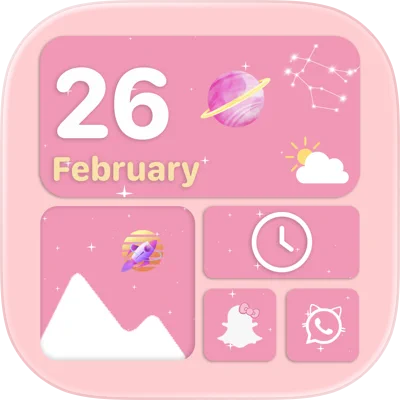
Themie (listed as Themes – Widget & Wallpapers) is the closest thing to a one-stop theme app. It combines an icon changer with icon styles from cute to elegant, widgets and a wallpaper library in 4K and Full HD, and it lets you rename apps as you replace their icons. You can take a ready theme whole, mix your own from its parts, or pull icons from the gallery. True to the limit above, its description says plainly how the icons get there: the app creates shortcuts to the new icons on your Home Screen, so you skip the seven-step routine for each one.
Our build, version 2.0.3, has the Premium subscription unlocked, which opens the exclusive themes and content.
Pick it if the icons are the point and you want them done in bulk.
One4Wall — wallpaper first, full theme packs on top
One4Wall, from One4Studio, has been on the App Store since April 2023 and started as a wallpaper collection: 4K and 8K images, live wallpapers, new pictures every day, and browsing by colour so you can match what you already have. It has since grown theme packs that bundle custom app icons, matching widgets and a wallpaper, so the whole Home Screen changes together. If the library has nothing you like, an AI generator makes a wallpaper from a text description.
Our build, version 5.1.18, has the subscription unlocked: the 4K, 8K and live collections, the complete theme packs and the AI generator. If a purchase page appears, close it and the premium content stays available.
Pick it if you choose the wallpaper first and want icons and widgets to follow it.
iScreen — themes plus Control Center and Dynamic Island
iScreen goes past the Home Screen. Alongside themes, wallpapers and Home Screen widgets (weather, battery, countdowns, calendars, with adjustable style and transparency), it builds Lock Screen widgets, puts a virtual pet or a growing flower on the Dynamic Island, and adds small tools to the redesigned Control Center of iOS 18 — a counter, water check-ins, a “book of answers”. Its wallpaper templates include Polaroid frames, jigsaw puzzles and marquee lights.
Our build, version 5.1.11, has the full subscription unlocked, so every widget, theme and wallpaper pack is open.
Pick it if you want the theme to reach Control Center and the Dynamic Island, not just the icons.
Widgy — design your own widgets from scratch
For people whose theme exists only in their head. Widgy is an editor: you build a widget from text, images and shapes, connect a data source — weather, system information, or Apple Health if you allow it — and watch a live preview as you go. Finished widgets can be shared by link or QR code, and the Explore section holds thousands made by other users, which is the quickest way to borrow a style.
Our build, version 27.0.1, has Pro unlocked. If something still shows as locked, restart the app.
Pick it if ready-made widgets never quite match your icons.
If you would rather pick widgets than build them, our digest covers Widgetsmith, iScreen and Koco Widgets with their plans unlocked.
Apps that sell their own alternate icons
Remember the one icon change iOS does allow — an app switching its own icon? Plenty of developers turn that into a paid perk: the alternate icons are in the app, but only subscribers can select them.
Televise is a tracker for TV shows, anime and films across streaming services, with a weekly calendar of upcoming episodes, rewatch history and a Home Screen widget for your next episode. Its paid extras include deeper stats, unlimited custom lists and alternate app icons. Our build, version 1.9.1, has the subscription unlocked, so the paid extras are open, icons included — and because it is the app changing its own icon, it is a real icon change: no shortcut, no badge problem.
A theme in five steps
Order matters, because each layer has to match the one before it:
- Wallpaper first. Everything else picks its colours from it. Browse by colour in One4Wall, or use your own photo.
- Set the tint. In Edit → Customize, use the eyedropper on the wallpaper. Every icon you don’t replace now matches anyway.
- Replace only what you see. Give custom icons to the dock and the first page; leave the rest to the tint.
- Add two or three widgets. They do more for the look than another row of icons.
- Finish the Lock Screen. Same wallpaper or a sibling, a clock font that matches, widgets in the same palette.
How to install the theme apps
None of these builds come from the App Store, and all of them install the same way — from the catalog, in one tap, with no PC and no developer account of your own:
- Register your iPhone at builds.io — one UDID, entered in the browser.
- Open the app’s page and tap GET. It installs like a normal download.
- If the first launch says “processing”, that is Apple’s one-time signing queue, not an error. Most devices are ready within a day, some take up to three days, and it happens once (what the wait is).
The apps stay signed for as long as your subscription runs. That matters more for a theme than for most apps: shortcut icons point at their apps, and an app that drops off after seven days — the way installs from free signers do (why that happens) — leaves the Home Screen you spent an evening on full of icons that open nothing.
FAQ
Can you change app icons on iPhone without Shortcuts? All of them at once, yes: Edit → Customize gives you dark, clear, tinted and large icons. A different picture for one specific app needs Shortcuts or a theme app that makes the shortcut for you. The exception is an app that ships its own alternate icons in its settings.
Do custom icons slow the app down? Not noticeably. Since iOS 14.3 the shortcut opens the app directly instead of going through the Shortcuts app first.
Why don’t my custom icons show notification badges? Because the badge belongs to the real app icon, and the shortcut is a separate button. If badges matter for an app, such as your messenger, keep its original icon and let the tint style it.
Are iPhone themes free? The built-in options are, and so is the Shortcuts method with your own pictures. Theme apps usually give a few packs free and charge a subscription for the rest; the builds above have that subscription unlocked.
Does this work on iPad? The Shortcuts method does — Apple’s Shortcuts guide gives the same Add to Home Screen steps for iPhone and iPad. The theme apps above install on iPad too, but are designed around the iPhone screen.
Start with the built-in tint — it is free and takes a minute. When you want icons, widgets and wallpaper that actually match, the theme apps above install from Safari and stay signed with builds.io. More apps with the subscription already on are in premium unlocked apps for iPhone.