
Picture in Picture on iPhone: Setup, YouTube and Fixes
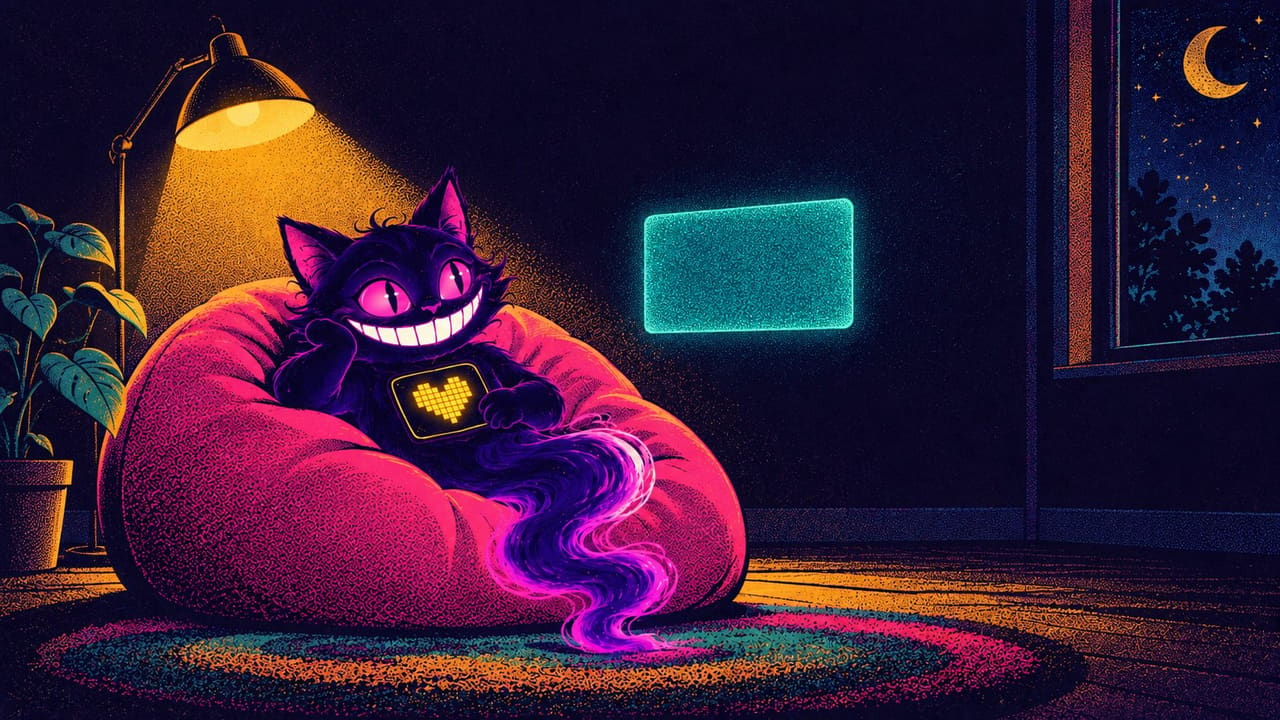
Picture in Picture is built into every recent iPhone and costs nothing. Start a video, leave the app, and the video keeps playing in a small floating window on top of whatever you open next: your messages, a map, a recipe. You can resize the window, drag it to any corner or tuck it off the edge of the screen and pull it back later.
The trouble starts with the word “supported”. Apple’s own guide says Picture in Picture works with supported apps and videos, and that if the option isn’t there, the app or video may not support it. The app decides whether you get PiP. YouTube, the app most people want it for, gives it to everyone for most videos but keeps it for paying members on music. Below: how to turn PiP on and control the window, which apps have it, where it stops, why it sometimes refuses to start, and the apps that add it where the official one doesn’t.
The 30-second answer
- Turn it on → Settings → General → Picture in Picture → Start PiP Automatically.
- Start it → play a video and leave the app, or tap the PiP button in the player.
- Control the window → pinch to resize, drag to a corner, drag it off the side to hide it.
- YouTube → PiP is free on iOS 15 and later for most videos, but music videos need YouTube Premium, and so does background play once you close the window.
- No PiP in your app at all? → no setting adds it. A tweaked build of the app, or a different player, can (cards below).
How Picture in Picture works on iPhone
Turn it on
PiP has one system switch. Open Settings → General → Picture in Picture and make sure Start PiP Automatically is on. With it on, a supported app moves its video into the floating window by itself when you leave the app while the video is playing. With it off, use the PiP button in the player instead.
Some apps add a second switch of their own. YouTube is one: its Help Center says PiP also has to be on in the YouTube app under Settings → Playback → Picture-in-Picture. YouTube switches it on by default on iOS 15 and later, unless you turned off background play in the app.
Start it
There are two ways in:
- Leave the app while the video plays. Swipe up to go Home (or switch to another app) and, with the automatic switch on, the video shrinks into a corner. YouTube’s guide notes the catch: if you pause or stop the video before you leave, PiP won’t start.
- Tap the button. Apple’s guide calls it the Minimize Video button in the video window. In the Apple TV app, tap the screen to show the controls and tap the Picture in Picture button.
Control the window
Once the video is floating, Apple lists everything you can do with it:
- Resize it. Pinch open to make it bigger, pinch closed to shrink it.
- Show or hide the controls. Tap the window once. In the Apple TV app that brings up play, pause and 10-second skips.
- Move it. Drag it to another corner of the screen.
- Hide it. Drag it off the left or right edge to tuck it out of the way, and drag it back when you want to watch again.
- Close it. Tap the Close button.
- Go back to full screen. Tap the Restore Full Screen button in the small window.
Which apps support it
Apple’s own video apps do. The Apple TV app has a Picture in Picture button in its player, and FaceTime works the same way: Apple’s guide says PiP lets you watch a video or use FaceTime while you use other apps, so a call keeps going in the small window while you look something up. YouTube supports it, with the limits below.
For every other app, it’s up to the developer. There is no list of supported apps and no setting that forces PiP on. If an app’s player has no PiP button and the video disappears when you swipe home, that app hasn’t added it.
Where Picture in Picture stops
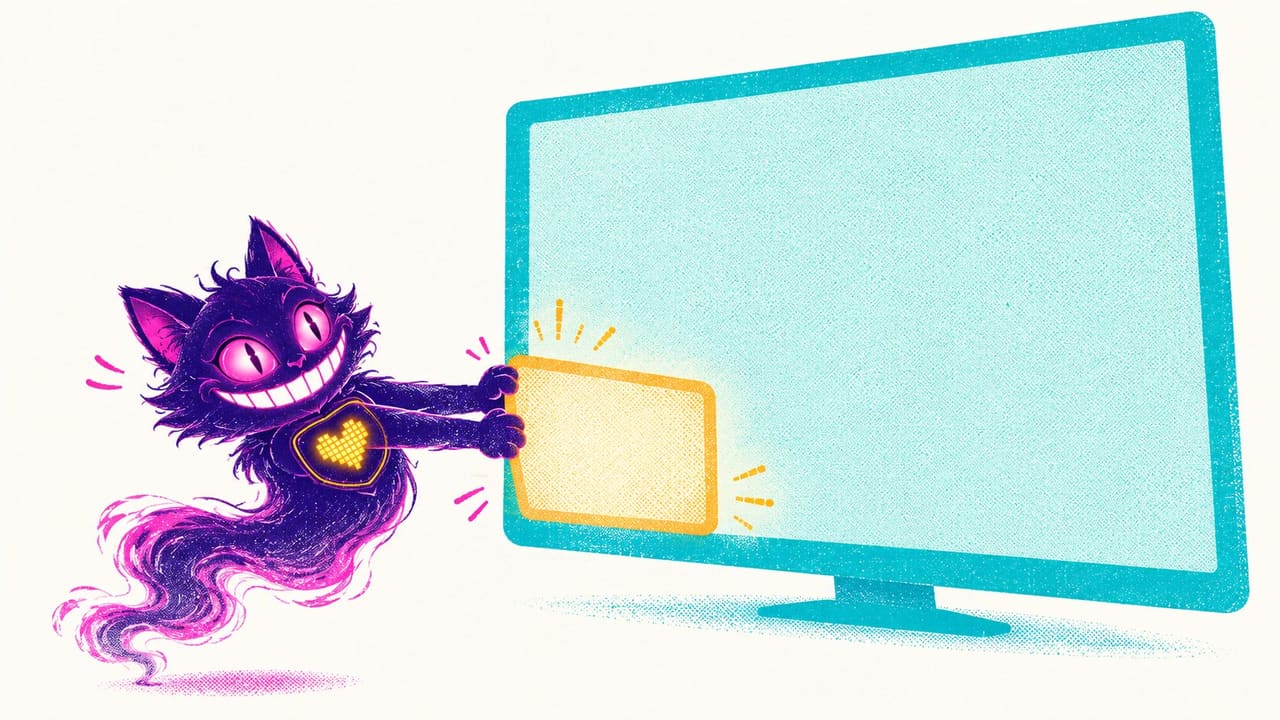
Everything above is the part iOS controls. The rest belongs to the apps, and that’s where PiP gets taken away.
Apps that never added it. Since each developer decides, some popular apps just don’t have a PiP button. iOS can’t add one for them, because one app can’t change how another app’s player works.
YouTube’s music rule. YouTube’s Help Center is specific. On iPhone and iPad you can use PiP for content across YouTube, with the exception of music content: official music videos, Art Tracks, children’s songs and user-made song covers. Those play in PiP only for YouTube Premium members. So the same app shows a podcast clip in a floating window, then won’t do it for a music video.
Background play. PiP isn’t background play, and YouTube treats them separately. Its troubleshooting page says background play requires a YouTube Premium membership. So on a free account, the floating window is as far as it goes: listening to YouTube with the window closed or the screen off is a paid feature.
Paid tiers in other players. Some third-party video players and browsers list PiP among their Pro features rather than giving it away, so the button leads to a subscription screen instead of a floating window.
Apps that add Picture in Picture
Where the official app won’t give you PiP, the fix is an app that does. A tweaked build is the real app with an extra layer added: you sign in with your normal account, and the features the original holds back are switched on. Separate players work on video the official app never touches.
For YouTube

The direct answer to “YouTube picture in picture on iPhone”. YouMod (formerly uYou) is the YouTube app with background and Picture-in-Picture playback among the features its changelog lists as unlocked, so the video can keep going when you lock the screen or switch apps. The same changelog lists ad-free playback with sponsor segments inside videos skipped, video downloads for watching offline, the dislike count back, and finer quality, speed and volume controls. Our build is rebuilt on YouTube 21.35.3. The full feature tour is in our YouMod guide, and if you mostly listen, see YouTube Music without ads.
If you’d rather watch YouTube in Safari than in the app, Vinegar is a Safari extension that swaps the YouTube player on the page for a plain HTML video player. According to its changelog, our version 3.2.3 build restores the picture-in-picture function, removes the ads and keeps playing in the background when you set the quality to audio-only. You can also set a default video quality. Nothing to sign into, and the YouTube website otherwise stays the same.
For other video sites and your own files

Video Lite is a browser built for video sites, with your favourites on the start page and tabs for switching between them. Its Pro features are unlocked in our build, and the list of what that unlocks includes Picture-in-Picture multitasking, Chromecast casting to a TV, dark mode and a sleep timer that pauses playback after a set time. It’s handy if you want one app for every site where you watch video, all with a floating window, instead of hoping each site’s own app supports PiP.

For video you own, such as movies on a NAS, a Plex, Emby or Jellyfin library, or files in a cloud drive or on WebDAV, SMB or FTP, SenPlayer plays it all in one place with picture-in-picture, a sleep timer and audio-only background playback. It handles subtitles (online search plus SRT, ASS, VTT and SSA files), DLNA casting, intro and credits skipping, and ISO Blu-ray with chapter selection. Our build is version 6.2.1 with the subscription unlocked, so the paid features work without a plan. If you watch IPTV playlists, more players are in our IPTV player roundup.
Want to keep a video rather than float it? See how to download YouTube videos on iPhone. Ads inside apps are covered in ad blockers for iPhone.
Picture in Picture not working on iPhone? Check these
Most “PiP is broken” moments come down to one of these, in this order:
- The system switch. Settings → General → Picture in Picture → Start PiP Automatically. If it’s off, swiping home closes the video instead of floating it. Try the PiP button in the player.
- The app’s own switch. In YouTube: Settings → Playback → Picture-in-Picture. Other apps that have one usually keep it in their playback settings.
- You paused first. If the video was paused or stopped when you left the app, PiP won’t start. Let it play, then swipe up.
- It’s a music video. On YouTube, music content is Premium-only in PiP. A talk or a vlog floats and a song doesn’t, and that’s how YouTube set it up.
- iOS version. YouTube’s PiP needs iOS 15.0 or later.
- The app or video doesn’t support it. Apple’s own wording: if the option isn’t available, the app or video may not support it. No setting will change that. A different app will.
- The window is hidden, not gone. If you dragged it off the side, it’s parked at the left or right edge. Drag it back in.
Installing the apps above
None of these builds are on the App Store. All four install the same way, from the catalogue, in one tap, with no PC and no developer account of your own:
- Register your iPhone at builds.io by entering one UDID in the browser.
- Open the app’s page and tap GET. It installs like a normal download.
- If the first launch says “processing”, that’s Apple’s signing queue, not an error. Most devices are ready within a day, and some take up to three. It only happens once (what the wait is).
They stay signed for as long as your subscription runs. Apps from free signers stop opening after seven days and have to be reinstalled (why that happens), and a YouTube with PiP that vanishes every week leaves you back at the subscription screen.
FAQ
How do I turn on Picture in Picture on iPhone? Go to Settings → General → Picture in Picture and turn on Start PiP Automatically. Then play a video in a supported app and swipe up to go Home, or tap the PiP button in the player.
Why is Picture in Picture not working on YouTube? Check the YouTube app’s own switch (Settings → Playback → Picture-in-Picture), make sure the video is playing when you leave the app, and check that you’re on iOS 15 or later. If it’s a music video, PiP needs YouTube Premium.
Is YouTube picture in picture free on iPhone? For most videos, yes. YouTube’s Help Center says music content (official music videos, Art Tracks, children’s songs and song covers) is PiP-only for Premium members, and background play also requires Premium.
Does Picture in Picture work with FaceTime? Yes. Apple’s guide says PiP lets you watch a video or use FaceTime while you use other apps, so the call shrinks into the floating window when you leave it.
How do I hide the Picture in Picture window without closing it? Drag it off the left or right edge of the screen, then drag it back in whenever you want it.
Can I make the PiP window bigger? Yes, pinch open on the window to enlarge it and pinch closed to shrink it.
Why does an app not have Picture in Picture? Because its developer hasn’t added it, or keeps it behind a paid tier. iOS can’t add PiP to another app. A tweaked build or a different player is the way around it.
If PiP is the one feature you keep reaching for, start with the cards above or browse the whole catalogue at builds.io. More apps with the paid tier already on are in premium unlocked apps for iPhone.