
Ad Blocker for iPhone: What Works in Safari and in Apps
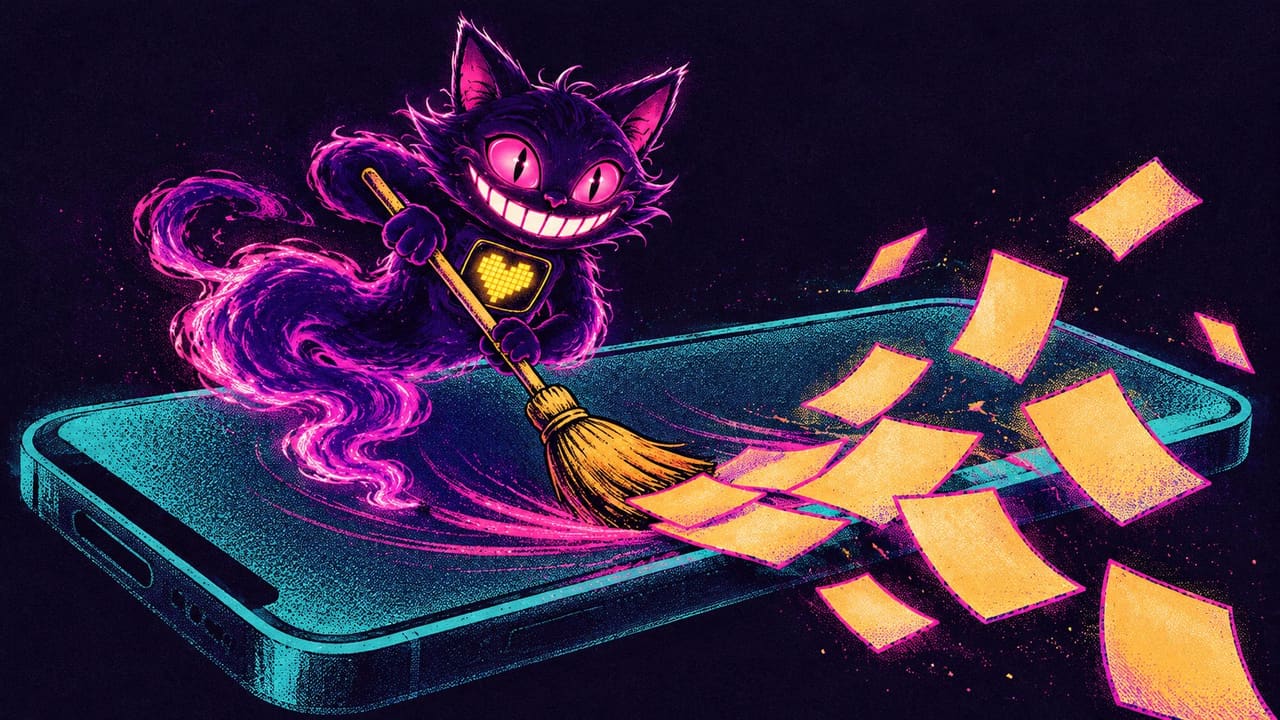
An iPhone can block ads, and part of it is free and already built in. Safari has its own pop-up blocker, a way to hide the clutter on a page, and support for content blockers — the App Store ad blockers you switch on in Settings. Set one up and most websites get noticeably cleaner.
Where people get stuck is everywhere else. Every one of those tools works on web pages in Safari. None of them touches the ads inside YouTube, Instagram, TikTok or Twitch, because those ads are part of the app itself, and iOS doesn’t let one app edit another. Below: what iOS blocks on its own, how to set up a Safari ad blocker, what DNS filters add, and what actually removes ads inside apps.
The 30-second answer
- Pop-ups in Safari → Settings → Apps → Safari → Block Pop-ups. Free, built in.
- Ads on websites → install a content blocker such as AdGuard or 1Blocker and turn it on under Settings → Apps → Safari → Extensions.
- Some ads in other apps → a DNS filter (AdGuard’s DNS protection is a paid feature) blocks ad networks by domain, across the whole phone.
- Ads inside YouTube, Instagram, TikTok or Twitch → no blocker reaches them. A tweaked build of the app with ads removed does: YouMod, RyukGram, BHTikTok Plus, TwitchControl (cards below).
What iPhone blocks without any app
Three things come with Safari and cost nothing.
Block Pop-ups. This stops sites from opening new windows on their own. Apple’s path is Settings → Apps → Safari → Block Pop-ups. On the same screen sits Fraudulent Website Warning, which warns you before you open a known phishing site. Keep both on.
Hide Distracting Items. Added in iOS 18 under the name Distraction Control. On a page, open the page menu next to the address bar, tap Hide Distracting Items, tap the banner or box you want gone, then tap Hide. When it launched, Apple stressed that it is not meant to be an ad blocker, and it shows: it hides only what you tap, one site at a time, and an ad that changes comes back when the page reloads.
Reader. On article pages, the page menu has Show Reader, which displays just the text and images. You can make a site always open in Reader with Website Settings → Use Reader Automatically, or every supported site with Settings → Apps → Safari → Reader → All Websites. Not an ad blocker, but on a news article it gets the same result.
How to turn on an ad blocker in Safari
A Safari ad blocker is an app from the App Store that adds a content blocker. It gives Safari a list of rules — “don’t load this ad server, hide this element” — and Safari applies them as the page loads. Apple’s developer documentation notes that a content blocker never sees your browsing activity, which is why these are one of the safer kinds of extension.
- Install the app (AdGuard, 1Blocker or similar) and open it once, so it can download its filter lists.
- Go to Settings → Apps → Safari → Extensions and tap the blocker. On iOS 17 and earlier, Safari is directly in Settings rather than under Apps.
- Turn on Allow Extension. Some blockers split their filters into several extensions — turn on every one of them.
- If you use Safari profiles, turn the extension on for each profile you browse in.
- To switch it off for one site that breaks, open the page menu in Safari, tap Manage Extensions and turn the blocker off there.
If the switches are greyed out, check Screen Time → Content & Privacy Restrictions: 1Blocker’s help pages say web-content restrictions there lock the extension toggles.
Where Safari ad blockers stop
This is the part the App Store listings leave out. A content blocker works in two places:
- Safari itself.
- Safari View Controller — the Safari-style window some apps open when you tap a link. Apple lists content blocking among the Safari features it supports, along with Reader and AutoFill.
It does not work in:
- In-app browsers built on WKWebView. Many apps — social networks especially — open links in their own built-in browser instead. A WebKit engineer said in 2022 that there were no plans to expose system content blockers outside Safari and Safari View Controller.
- Native apps. The YouTube app, Instagram, TikTok, Twitch and nearly every free game draw their ads themselves. As AdGuard puts it in its own YouTube guide, iOS prevents third-party apps from modifying the traffic of other apps. No App Store blocker gets inside.
So when someone says their ad blocker “stopped working” in YouTube, it never worked there. It was only ever filtering Safari.
DNS and VPN blockers: a partial fix for apps
There is one way to filter other apps from the App Store: DNS filtering. A DNS blocker — AdGuard’s DNS protection, NextDNS and the like — sits where your iPhone looks up domain names, and refuses to resolve the ones on its block lists. Because every app does those lookups, it works phone-wide. AdGuard’s knowledge base says its DNS settings let you block ads “not only in Safari but in other apps too”, and lists custom DNS settings as a Premium feature.
It blocks by domain, and that sets the limit. If an app loads its ads from a separate ad network’s domain, DNS can stop them. If the ads come from the same servers as the content, DNS can only block both or neither. That is the case with YouTube: AdGuard’s own guide says DNS filtering cannot reliably block YouTube’s pre-roll and mid-roll video ads, and rates its iPhone app as only “partially” covering YouTube. Its workaround for the YouTube app is to share each video into AdGuard’s own player — fine once, tiring every day.
Instagram and TikTok are the same story: their sponsored posts arrive in the same feed as everything else, so there is no separate domain to block.
Safari ad blockers with the paid tier unlocked
Both of the big content blockers keep their best features behind a subscription. These builds in our catalogue have it open.
AdGuard blocks banners, pop-ups and video ads on websites in Safari, along with trackers and analytics scripts, and lets you add custom filter lists. On the App Store, the features that reach beyond Safari — DNS protection for other apps, custom filters and Advanced protection for harder ads — are Premium. Our build, version 4.5.23, has the subscription unlocked, so those switches are open. That makes it the one app here that covers both halves: content blocking in Safari and DNS filtering for everything else, with the YouTube limit described above.
1Blocker is the simpler, native-feeling choice: a set of switches for ads, trackers and annoying page elements, with filter lists updated in the background so you set it up once and leave it. It is built for Safari specifically and is light on battery. Our build, version 6.7, has the subscription unlocked, so the premium features work without an active plan.
Ads inside apps: the tweaked app is the real fix
If the ads you hate are in YouTube, Instagram, TikTok or Twitch, you need the app itself to stop showing them. That is what a tweaked build does: it is the official app with a layer added that removes ads from the inside, where no blocker can reach. You keep your account, your feed and your subscriptions. And because each one is the real app with that layer on top, it gets rebuilt whenever the original updates.

The direct answer to “YouTube ad blocker for iPhone”. YouMod (formerly uYou) gives you ad-free playback, and it skips sponsor segments inside videos too — the read-outs that are part of the video file and that no ad blocker touches. It also adds background and Picture-in-Picture playback, video downloads, the dislike count back, and finer quality, speed and volume controls. Our build is rebuilt on YouTube 21.35.3. The full feature tour is in our YouMod guide.
The full Instagram app with a tweak layer built on SCInsta. Ads and Meta AI stay hidden, and on top of that you get media downloads up to 1080p from posts, reels and DMs, read receipts you control, a log of deleted messages and a stories archive. You sign in with your normal account. Our build tracks Instagram 449.0.0; more in our RyukGram guide.

TikTok with no ads in the feed, plus a download button for videos without the watermark, music downloads, one-tap copying of links and descriptions, and confirmation prompts so you don’t like or follow by accident. Our build is updated for TikTok 47.0.0. Details in our BHTikTok Plus guide.

The real Twitch app with only the ad layer taken out: no pre-roll and no mid-roll ads on live streams or VODs, while chat, follows and clips work as usual. Our build is Twitch 31.0.2 with TwitchControl 0.0.6. One thing to know: it is based on the public Twitch release, so it replaces the official Twitch app on your iPhone rather than installing beside it. If you also want to download VODs and clips, see our Twitch guide.
Pop-up blocker on iPhone: what it catches and what it doesn’t
“Pop-up blocker iPhone” is one of the most searched questions here, and the setting takes ten seconds:
- Open Settings.
- Tap Apps, then Safari.
- Turn on Block Pop-ups.
To let a site that needs pop-ups work — a bank’s payment window, a login form — turn the same switch off, finish, and turn it back on.
What it blocks is new windows a site tries to open. What it does not block is an overlay drawn inside the page: a “subscribe” box, a cookie banner, a fake “your iPhone has a virus” alert. Those are part of the page, so a content blocker or Hide Distracting Items handles them, not this switch. Apple’s advice on the scary ones is worth repeating: some pop-ups have fake buttons made to look like a close button, so if you’re unsure, don’t tap anything on it — close the tab instead.
Pop-ups inside apps are, again, outside Safari’s reach. In a free game, those full-screen ads between levels are the app’s own; a DNS filter catches some of them, and a build of the game without ads catches all of them.
Installing the apps above
None of these builds are on the App Store. All six install the same way — from the catalogue, in one tap, with no PC and no developer account of your own:
- Register your iPhone at builds.io — one UDID, entered in the browser.
- Open the app’s page and tap GET. It installs like a normal download.
- If the first launch says “processing”, that is Apple’s signing queue, not an error. Most devices are ready within a day; some take up to three. It happens once (what the wait is).
They stay signed for as long as your subscription runs. Apps from free signers stop opening after seven days and have to be reinstalled (why that happens) — and an ad-free YouTube that disappears every week brings the ads back with it.

FAQ
Does iPhone have a built-in ad blocker? Not a full one. Safari has Block Pop-ups, Hide Distracting Items and Reader, all free. Blocking ads on websites automatically needs a content blocker app.
Is there a free ad blocker for iPhone? Yes — Safari’s own tools are free, and AdGuard has a free version that blocks ads in Safari. Its paid tier adds custom filters, Advanced protection and DNS protection for other apps; the AdGuard and 1Blocker builds above have their subscriptions unlocked.
Can I block ads in apps on iPhone? Partly with a DNS filter, which stops ads loaded from separate ad networks. For YouTube, Instagram, TikTok and Twitch, where ads come from the same servers as the content, only a tweaked build of the app removes them.
Why does my ad blocker not work in YouTube? Because content blockers only run in Safari and Safari View Controller. The YouTube app is a separate native app, and DNS filtering can’t separate its ads from its videos.
How do I turn off the pop-up blocker on iPhone? Settings → Apps → Safari, turn off Block Pop-ups. Turn it back on when you’re done.
Do Safari ad blockers work in Chrome or Firefox on iPhone? No. They are Safari extensions, and other browsers do not load them; some browsers have their own built-in blocking instead.
If what you want is the apps you use every day without the ad breaks, start with the cards above, or browse the whole catalogue at builds.io. More apps with the paid tier already on are in premium unlocked apps for iPhone.