
Kodi for iPhone: How to Get Kodi on iOS in 2026
Search for Kodi in the US App Store (we checked on October 21, 2026) and you get two kinds of results. One is the Official Kodi Remote, an app that controls Kodi running on another device. The others are apps that only borrow the name, including an unrelated Dutch business app called “Kodi”. The media center itself isn’t there.
Kodi does run on iPhone, though. Team Kodi still builds Kodi for iOS, and the current release, Kodi 21.3 “Omega”, runs on iOS 11 and later. The catch is how they ship it: as a package for iPhones that have been modified to install software outside Apple’s rules. Below: what Kodi is and what it does on a phone, why it isn’t in the App Store, the usual ways people install it and why they’re a chore, and how to get the official build from builds.io in one tap.
The 30-second answer
- Is Kodi on the App Store? No. Only the Official Kodi Remote is, and it’s a remote, not the player.
- Is there an official Kodi for iOS? Yes. Team Kodi publishes Kodi 21.3 “Omega” for iOS 11 and later.
- Why is it hard to install? The official download is a
.debpackage made for modified iPhones. On a regular iPhone you sign it yourself from a computer, and with a free Apple ID that copy stops opening after 7 days. - The one-tap route: the official 21.3 build, unchanged and packaged as an IPA, installs from builds.io and stays signed.
- What you watch in it: your own files and servers, plus add-ons from Kodi’s official repository. Kodi comes with no movies, shows or channels.
What Kodi is, and what it isn’t
Kodi is a free, open-source media center, the one formerly known as XBMC. The project dates back to 2003, and its code still lives in the xbmc/xbmc repository on GitHub. The non-profit behind it is the XBMC Foundation, and the work is done by volunteers. More than 500 developers have contributed. It runs on Windows, macOS, Linux, Android, iOS and tvOS. It was designed as a “10-foot interface” for a TV and a remote, so on a phone it looks like a living-room app shrunk to fit your hand.
The most important thing to know before you install it: Kodi has no content of its own. The project’s own disclaimer on kodi.tv is blunt: “Kodi does not provide any media content or sources.” Kodi is the player and the library, and you bring the media. That media can be:
- A NAS or a computer at home: shared folders over the network (SMB or NFS), or a UPnP/DLNA media server.
- A Plex or Jellyfin server you already run: through their add-ons (more on those below).
- Live TV from your own tuner: Kodi’s PVR clients connect to backends such as Tvheadend, MythTV or NextPVR, so you can watch and record broadcasts you already receive.
- Free and legal services: add-ons in Kodi’s official repository for sites like TED Talks, NASA, the Internet Archive or Vimeo, and for your own Dropbox, Google Drive or OneDrive.
What Kodi does with that media
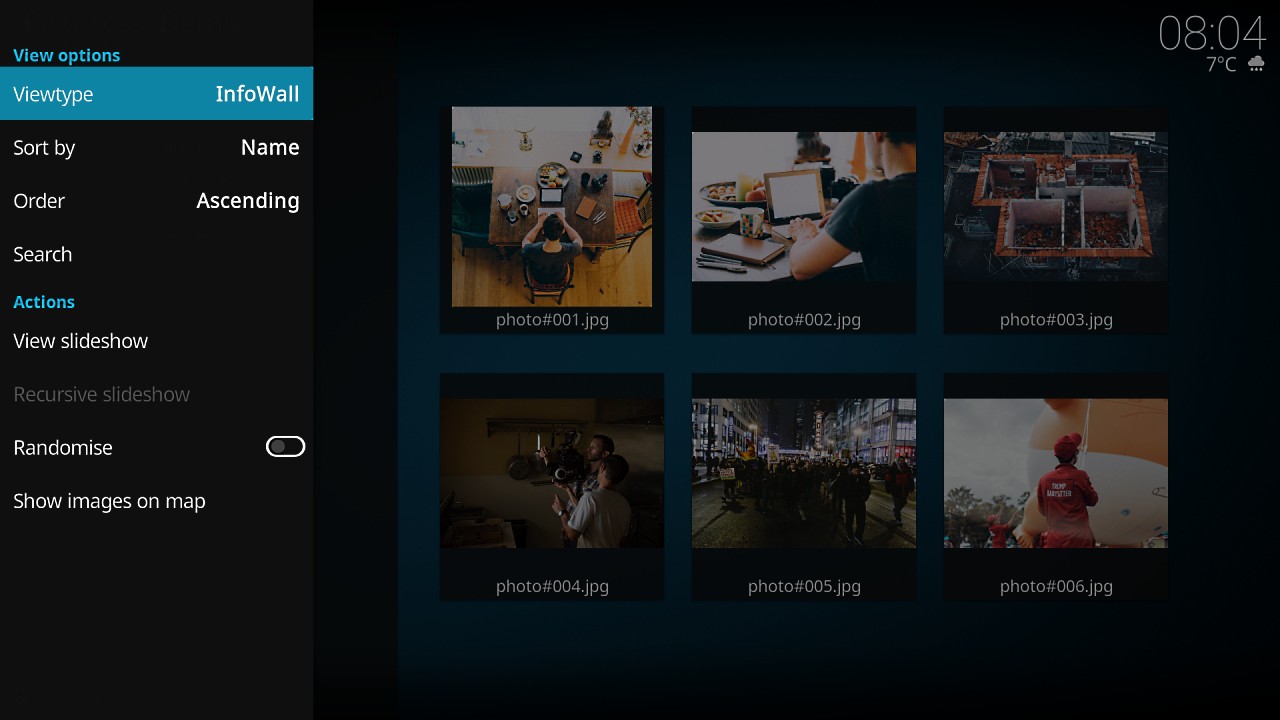
Point Kodi at a folder of movies and it turns file names into a proper library. It fetches posters, plot summaries, cast and ratings through its metadata add-ons (The Movie Database is the default), groups TV episodes into seasons, and remembers what you’ve watched. It does the same for music, with album art, tag reading and smart playlists, and for photos, with slideshows. The look is up to you: Kodi supports skins, and the default one, Estuary, is what you’ll see on first launch.
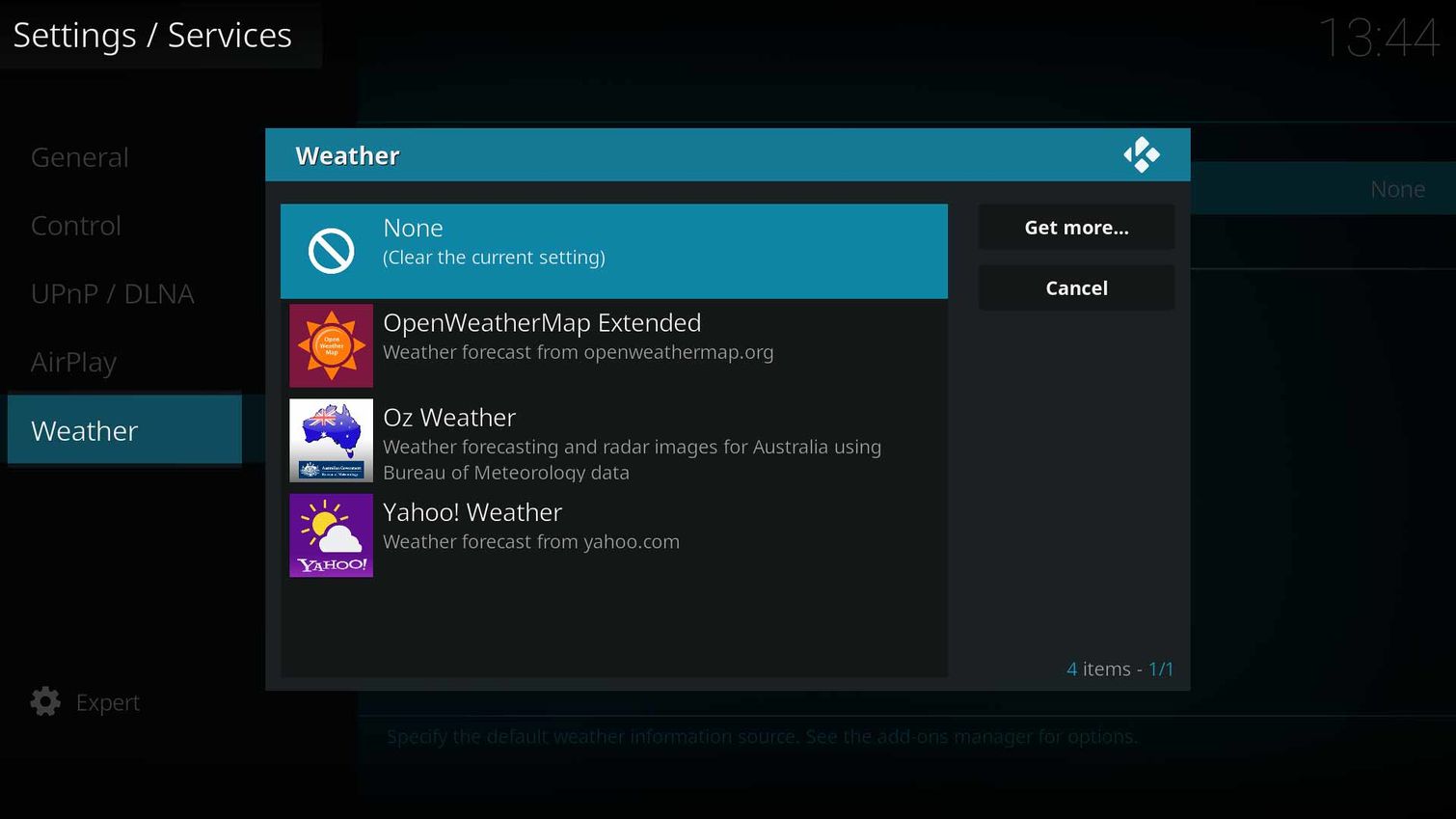
Two more features make it more than a player. Kodi has its own UPnP/DLNA and AirPlay settings, so the phone can find and play from media servers on your Wi-Fi. And it has a JSON-RPC remote interface, so the Official Kodi Remote and similar apps can browse and control a Kodi library from another device.

Why Kodi isn’t on the App Store
Team Kodi doesn’t publish Kodi on the App Store. The only app the Kodi project has there is the remote. The iOS download page on kodi.tv offers a single file, a .deb package, and points you to the BigBoss repository in a package manager. That route only works on an iPhone modified to install software from outside the App Store.
There’s also a structural reason Kodi and the App Store don’t fit together. Kodi’s power comes from add-ons, and the project’s own README says those are mainly written in Python and XML. Kodi downloads them and runs them on your device. Apple’s App Review Guideline 2.5.2 says apps may not “download, install, or execute code which introduces or changes features or functionality of the app”. An App Store Kodi would have to drop most of what makes it Kodi.
How people usually install Kodi on iPhone
There are three common routes, and each costs you something.
1. The official package, on a modified iPhone. This is the route kodi.tv describes: open a package manager, find Kodi in the BigBoss repository, install. It’s simple if your iPhone is already set up that way. Most iPhones aren’t, and modifying a current iPhone just to run a media player is a big step.
2. Sign it yourself, on a regular iPhone. Kodi’s wiki covers this as an advanced, somewhat experimental method: turn the .deb into an IPA and sign it with your Apple ID on a Mac, using iOS App Signer or Xcode. Many guides do the same on Windows with a sideloading tool such as Sideloadly or AltStore. It works, with strings attached:
- You need a computer every time you install or re-sign.
- With a free Apple ID, the signed app stops opening after 7 days. Kodi’s wiki warns you’ll be re-installing it every week, and AltStore’s own docs say apps installed with it “expire after 7 days” (why that limit exists).
- A free account can only keep 3 sideloaded apps on a device at a time.
- You’re giving your Apple ID to a third-party signing tool.
3. Build it from source. Kodi’s iOS build guide walks through compiling it with Xcode on macOS and signing it with your own developer identity. It’s the most “official” way to run Kodi on a regular iPhone, and it takes a Mac and an afternoon.
For a media player you want to just open on the sofa, all three are a lot of work. The weekly expiry is the worst part. Kodi stops opening on the very evening you sit down to watch something.
Kodi on iPhone from builds.io
The build in our catalogue is Team Kodi’s official Kodi 21.3 “Omega” for iPhone and iPad, unchanged. We took the official iOS .deb and packaged it as an IPA so it can be signed for a regular iPhone. Nothing is added or “unlocked”, because there’s nothing to unlock: Kodi is already free. What you get is the real Kodi without modifying your iPhone, without a computer, and without re-signing every week.
If you need an older release, the same page also has Kodi 21.0 “Omega”, 20.5 “Nexus” and 19.3 “Matrix”. That’s useful if an add-on you rely on hasn’t caught up with Omega yet.
What’s new in Kodi 21.3
21.3 is a bug-fix release of Omega. Team Kodi says Omega is still its current release, even with alphas of Kodi 22 “Piers” already out. From the official release notes, these are the changes you’ll notice on a phone:
- Faster video library rescans, and multi-episode files no longer overwrite the first episode.
- Subtitles: fixed selection for two-letter language codes.
- Add-ons keep updating after a long break. Before, updates stopped after 25 days of inactivity.
- Network: support for HTTP Basic Authentication, a fix for streams failing on interrupted HTTP/2 transfers, and updated CA certificates.
- Touch: better touch support for the arrows in slider dialogs.
First setup: add your own media
On first launch Kodi opens to an empty home screen with Movies, TV shows, Music, Videos, Pictures and Add-ons down the side. Everything you’ll see there comes from you, so the first job is adding a source:
- Add a folder. Go to Videos → Files → Add videos… and browse. Kodi lists the network shares and UPnP/DLNA servers it can find on your Wi-Fi. Pick your NAS or computer folder.
- Tell Kodi what’s in it. Set the content type (movies, TV shows or music videos). Kodi scans the folder and builds the library with posters and descriptions.
- Plex or Jellyfin? If your library already lives on a server, use its add-on instead. Composite is in Kodi’s official repository and browses and plays a Plex Media Server library. Jellyfin publishes its own Jellyfin for Kodi and JellyCon add-ons from its own repository, and its docs walk you through installing them.
- Media servers and AirPlay. Settings → Services has the UPnP/DLNA and AirPlay options, if you want Kodi to find or share media over the network.
Kodi add-ons: stick to the official repository
Add-ons are where Kodi gets its reputation, good and bad. The good part is the Kodi Add-on repository, which is built into the app. Open Add-ons → Install from repository → Kodi Add-on repository and you’ll find video and music add-ons, PVR clients, subtitle providers, skins, weather and screensavers. All of them are submitted to and hosted by the Kodi project itself. The ones worth starting with:
- The Movie Database: the metadata scraper behind your library’s posters and descriptions.
- Composite: your Plex Media Server library inside Kodi.
- Tvheadend HTSP Client (and other PVR clients): live TV and recordings from your own backend.
- Dropbox, Google Drive, OneDrive: play your own videos, music and photos from the cloud.
- TED Talks, NASA, Internet Archive, Vimeo: free, legal video to watch right away.
The bad part is everything outside it. Kodi can install add-ons from zip files and third-party repositories once you turn on Settings → System → Add-ons → Unknown sources. It’s off by default. Many of those repositories exist to stream movies, sports and TV channels without the rights to them. We don’t list or link them, and we recommend you leave them alone. The Kodi project doesn’t support them either: its site says it gives no help with “bootleg content or other illegally sourced material”. These add-ons run code on your phone from someone you can’t identify. If you turn on Unknown sources for a trusted repository, like Jellyfin’s, install what you came for and switch it off again.
If you watch IPTV from a provider you pay, a dedicated player handles playlists better than Kodi does. See the best IPTV players for iPhone.

How to install Kodi on iPhone
- Register your iPhone at builds.io. It takes one UDID and happens in the browser.
- Open the Kodi page and tap GET. Version 21.3 is the default. Older versions are on the same page. It installs like a normal download, with no PC and no developer account of your own.
- If the first launch says “processing”, that’s Apple’s signing queue, not an error. Most devices are ready within a day, and some take up to three days. It only happens once (what the wait is).
Kodi then stays signed for as long as your subscription runs. You don’t need to plug in a computer every Sunday, and your library doesn’t disappear on movie night.
Kodi alternatives on iPhone
Kodi is the deep end: a full media center with a library, skins and add-ons. If you want something simpler, two apps cover most of the same ground.
If what you want from Kodi is “play the movies on my NAS”, SenPlayer does that with a phone-first interface. It plays from WebDAV, SMB, FTP and cloud drives, connects to Plex, Emby and Jellyfin libraries, and handles subtitles, picture in picture and DLNA casting. The catalogue build has the subscription features unlocked. More about it in the best streaming apps for iPhone.
Stremio has the same idea as Kodi, an empty player that add-ons fill in, but organised around one account that syncs your library and add-ons across devices. It’s also missing from the App Store and installs as the official IPA. The full story is in Stremio on iOS.
FAQ
Is Kodi available on the App Store? No. Searching for “Kodi” in the App Store shows the Official Kodi Remote, which controls Kodi on another device, and unrelated apps with the same name. The Kodi media center itself isn’t there.
Is the Kodi on builds.io the real Kodi?
Yes. It’s Team Kodi’s official 21.3 “Omega” build, unchanged. We packaged the official iOS .deb as an IPA so it can be signed for a regular iPhone.
Does Kodi work on iPad? Yes. The same build installs on iPhone and iPad running iOS 11 or later, and the larger screen suits Kodi’s TV-style interface well.
Is Kodi legal? Yes. Kodi is free, open-source software under the GPL. What matters is what you play in it. Your own files, your own servers and the add-ons in Kodi’s official repository are fine. Add-ons that stream content without the rights to it are not, and the Kodi project doesn’t support them.
Do I need a computer to install Kodi on iPhone? Not from builds.io. You only need one if you sign the IPA yourself, and then every 7 days on a free Apple ID.
Can I use my iPhone as a remote for Kodi on my TV? Yes, that’s what the Official Kodi Remote in the App Store is for. If you’d rather watch on the phone itself, install Kodi.
About Kodi
Kodi® is a trademark of the XBMC Foundation. builds.io is not affiliated with or endorsed by the XBMC Foundation or Team Kodi. Kodi is free, open-source software licensed under GPL-2.0-or-later. Source code: github.com/xbmc/xbmc (tag 21.3-Omega). Official downloads and documentation: kodi.tv.
Kodi is the media center your own collection deserves, and builds.io keeps it on your iPhone without the weekly re-signing. Get Kodi on builds.io and it installs in one tap.