
Alight Motion on iOS: Premium Unlocked, No Watermark
Alight Motion is the app behind a huge share of the edits you scroll past — the velocity cuts, the shakes, the glowing text that snaps to the beat. It started on Android in 2018 and only reached the iPhone at the end of 2019, which is why so many tutorials, presets and “how to get it on iOS” questions still circle around the iPhone version.
The free app works, but it stamps a watermark on everything you export and locks the premium effects. Here is what the membership actually unlocks, how to get it on iPhone already unlocked, and the iOS quirks — presets, fonts, export errors — that the Android-made tutorials skip.
What Alight Motion is
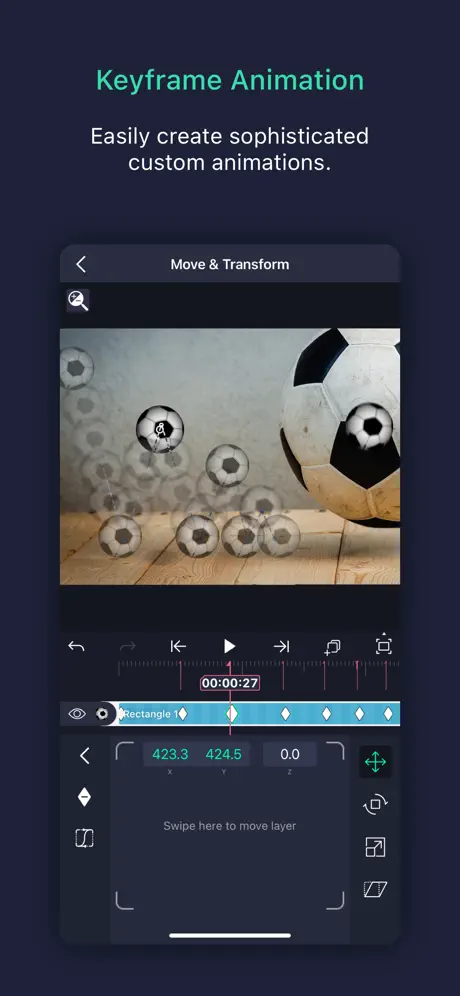
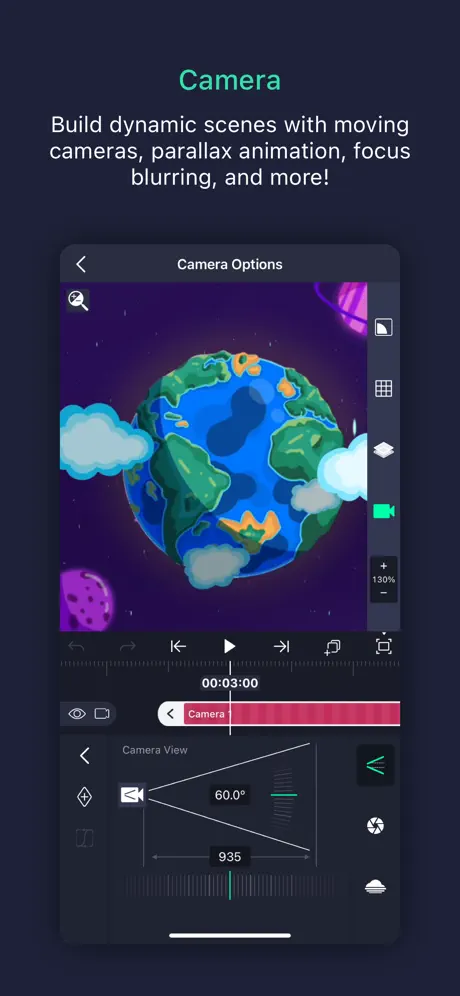
It is a full motion-design and video editor in your pocket: keyframes on every setting, vector and bitmap drawing, layer parenting and character rigging, a virtual camera with focus blur and fog, masking, easing curves and velocity-based motion blur. The App Store listing counts 160+ effect building blocks, and the official guides lean on blending modes and chroma key for the classic edit looks. There is no official limit on the number of layers — only what your phone can process at once.
It exports MP4 in H.264 or HEVC, GIF animations and PNG sequences, plus single stills. On the App Store it holds a 4.4 rating from almost 78,000 reviews and needs iOS 14.4 or later. Alight Creative, the original studio, was bought by Bending Spoons in 2023, which now publishes the app.
What the membership unlocks
Alight Motion’s own wording is simple: the app is “free to use with basic features and a watermark on videos you create.” A membership removes the watermark from all your projects and opens all the Pro features and effects. On the App Store that is $4.99 a week or $6.99 a month in the US.
The build in our catalogue, version 6.2.60 — the same version the App Store released on October 2, 2026 — has the subscription unlocked. Log in once inside the app to activate it, and every premium effect is open with no watermark on export. If Pro features ever look locked after logging in, the official fix works here too: My Account → Refresh.

Presets, “XML” and links on iPhone
Half the Alight Motion community runs on shared presets, and this is where iPhone users get stuck. Two things to know:
- “XML” is a community word. The official sharing format is the Project Package, shared as an Alight link or QR code, and imported projects land in the Templates tab. Guides written for Android often tell you to import an XML file directly, which is not how it works on iPhone — use the link or the QR code.
- Tapping a preset link opens the App Store instead of the app. It is a known iOS quirk, and the official workaround is to paste the link into Chrome (not a browser inside another app), long-press Open, choose Open in Alight Motion, then Import.
Fonts are the other common question — including the popular trick of loading an Apple-emoji font into the app. Alight Motion takes .ttf font files, unzipped, before import.
Export errors you might hit
Big projects push a phone hard, and Alight Motion names its export failures. The ones with official fixes:
- 1285 Insufficient RAM — the project is too heavy for the device at that resolution.
- AVFoundationError — an iOS media error.
- Failed Starting Asset Reader — the app could not read a source clip.
- 1037 Codec Init Failed — too many video streams for the device to decode at once.
The general fix is the same for all of them: restart the phone, update the app, export from the project list rather than from inside the editor, and drop resolution, frame rate or bitrate a step.
How to install Alight Motion on iPhone
Before you switch: Alight Motion keeps projects only on the device, so deleting the App Store version deletes your projects with it. Back up anything you want to keep as a Project Package first.
Then install from the catalogue, in one tap and with no computer:
- Register your iPhone at builds.io — one UDID, done in the browser.
- Open the Alight Motion page and tap GET.
- Log in inside the app to activate the unlocked subscription.
- If the first launch says “processing”, that is Apple’s one-time signing queue rather than an error. It usually clears within a day, occasionally up to three.
The build stays signed for as long as your subscription runs — no seven-day refresh in the middle of an edit (why free signers expire). For more creative apps with the paywall already off, see photo editors with premium unlocked.