
GameCube, 3DS & PSP Emulators on iPhone – Install in 2026
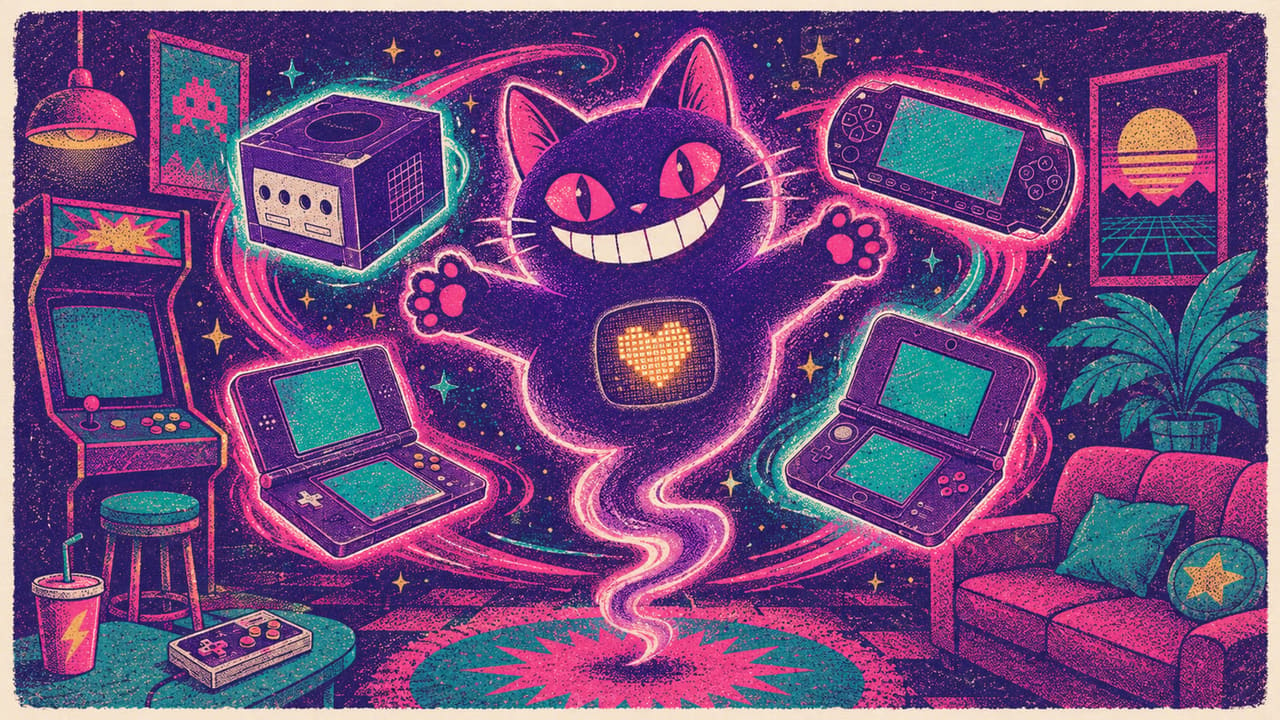
The App Store now carries a few lightweight emulators, but the heavy consoles — GameCube, Wii, Nintendo 3DS, PSP — still aren’t there, or show up stripped down. Sideloading is how you run them on an iPhone. This is the short list of console emulators that actually work in 2026, how to install each one without a computer, and how to keep them from breaking every seven days.
DolphiniOS — GameCube & Wii Emulator

This is the GameCube and Wii emulator people mean when they search for one on iPhone. On a recent A-series chip it runs most of the library at full speed, with widescreen hacks and save states. Older devices will see slowdown in the heavier titles, so it rewards a newer iPhone more than anything else here.
emuThreeDS — Nintendo 3DS Emulator
A Citra-based emulator for the Nintendo 3DS, including the games that never left the system. Performance scales with your chip: newer iPhones manage the demanding 3D titles, while most 2D games run cleanly across the board. Dual-screen layouts are configurable so you can favour the top screen on a phone.
PPSSPP — PSP Emulator

The most mature emulator on this list. It runs nearly the entire PSP catalog, upscales games well past the handheld’s native resolution, and supports save states and external controllers out of the box. If you only install one console emulator, this is the safest bet for smooth performance.
iNDS — Nintendo DS Emulator

A lightweight Nintendo DS emulator with configurable dual-screen layouts, save states, and fast-forward. It’s light enough that even older iPhones handle the DS library without much fuss, which makes it a good first emulator if you’re not on the latest hardware.
GBA4iOS — Game Boy Advance Emulator

The classic handheld emulator: Game Boy, Game Boy Color, and Game Boy Advance in one app. It runs everything in those libraries smoothly on any iPhone, supports save states, and pairs with a Bluetooth controller for a console-like feel on the couch.
Delta — All-in-One Nintendo Emulator
One app for the whole Nintendo back-catalog up to the DS era. If you mostly want Nintendo classics in a single, polished interface rather than a separate emulator per system, start here. It’s the most approachable option on the list and the one most people install first.
Provenance — Multi-System Emulator
A multi-system front-end covering dozens of retro consoles — NES, SNES, Genesis, N64, PS1 and more — through a single library. Good if you want one app that organizes everything by system and keeps your collection in one place instead of jumping between separate emulators.
RetroArch — Everything Else
The power-user option. RetroArch runs almost any retro system through downloadable cores, with deep settings for shaders, controllers, and save states. It takes more setup than the others, but nothing here matches its range — and it’s the same engine power users run on every other platform.
How to install an emulator on iPhone (no computer)
You sideload these through builds.io. The setup is a one-time thing; after that, each emulator installs in a few taps. No PC required.
One-time setup:
- Open builds.io in Safari and sign up.
- Choose a subscription plan and complete payment.
- Install the configuration profile when prompted. This registers your device with Apple by its UDID — it’s how builds.io ties your subscription to that iPhone. One device per subscription.
- Wait for your device to finish processing. Most devices are ready within a day; some take up to three days while Apple runs its background checks. This affects roughly 60% of new devices, it’s normal, and it only happens once. You get a notification the moment it’s ready.
Then, for each emulator:
- Open the emulator’s page in the catalog (for example, DolphiniOS for GameCube) and tap Get.
- Wait while the app is signed for your device. When the button changes to Install, tap it and allow the system prompt.
- The icon appears on your home screen and in the Recently Added folder.
- If iOS asks for it, enable Developer Mode: Settings > Privacy & Security > Developer Mode, toggle it on, and restart.
New to sideloading on the latest iOS? Our guide to sideloading on iOS 26 walks through the same setup in more detail.
Loading your games
The emulator is just the player — you add the game files you own. Every emulator has its own import: most read files straight from the Files app, and some accept games through the iOS share sheet or a built-in importer. Open the emulator once it’s installed and follow its import screen. Save states and controller support are built into the apps above, so a Bluetooth controller pairs the same way it would with any game.
Why these don’t expire every 7 days
The catch with free sideloading tools — SideStore, LiveContainer, AltStore — is the seven-day signature. Apps are signed for a week, then stop opening until you refresh them, usually over a VPN and on a schedule. It’s a chore, and it tends to break after an iOS update. builds.io uses managed signing instead: the emulator stays signed, so it just opens when you tap it. If you’ve hit the refresh wall before, here’s why sideloaded apps get revoked and how to stop it.
Getting started
Decide which console you want first — GameCube and Wii through DolphiniOS, 3DS through emuThreeDS, PSP through PPSSPP, or everything at once through Delta and RetroArch. Set up your device once on builds.io, install the emulator in a few taps, and load your games. The apps stay signed, so the only thing left to do is play. For the wider picture, see our roundup of the best iPhone emulators you can’t get from the App Store.