
GoPro Quik, PureStatus & Sticker.ly on iPhone

A short clip from your weekend can become a video, a WhatsApp Status update or a sticker for the group chat. Those jobs need different tools. This week’s picks cover each step: GoPro Quik for assembling footage, PureStatus for preparing Status posts and Sticker.ly for making stickers. Two new arrivals, Ultralight and Vibe, cover photo editing and wallpapers.
GoPro Quik: turn the clips into one video

Start with the moments you actually want to keep. Quik lets you trim and assemble footage on your iPhone, so you can work on a short edit before deciding where to share it. Pick one sequence, remove the unused material and watch the result from beginning to end. Keeping an untouched copy gives you somewhere to return if you cut out a moment you later want back.
The catalog notes for Quik 13.44 say that subscription access is unlocked. Sign in to your account to activate it. Open the GET card to download the GoPro Quik IPA for iPhone and check the current build before installing.
PureStatus: prepare the Status version

PureStatus covers the version of a clip you want to share through WhatsApp Status. Use it after you have settled on the edit, rather than starting again from several source clips. Preview the result on your phone and check that the part you want people to see is still clear. A short clip is also easier to review before you send it.
The current catalog build, PureStatus 2026.13, lists Pro features unlocked. The notes do not list a separate activation step. Use the GET card to download the PureStatus IPA and see the current version in the catalog.

Sticker.ly: keep the moment as a sticker

A reaction can work better in a chat when it takes up one sticker. Sticker.ly makes sticker packs from photos or short clips. Start with a subject that remains recognizable at a small size, then keep the pack focused on the people or moments you want to use again. Check the finished sticker in a conversation before filling the pack with more variations.
For Sticker.ly 3.41.0, the catalog notes list subscription features unlocked. Open the GET card to download the Sticker.ly IPA for iPhone.
New: Ultralight for the photo or video edit
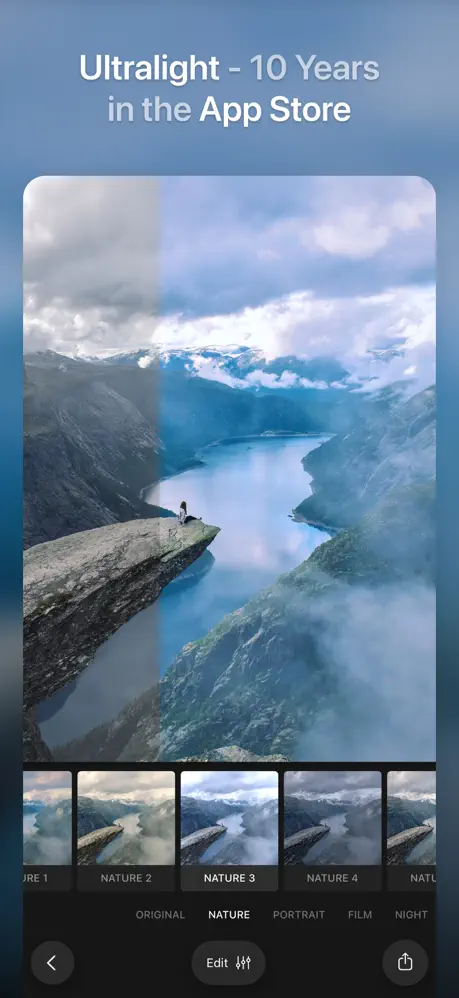
Ultralight gives the still image its own editing pass. Use its presets and controls to work on a photo or clip, then compare the result with the source. Try it on a duplicate if you want to keep the original look. Reviewing the whole frame helps you notice changes that looked good in a close crop but distract in the finished image.
The catalog notes for Ultralight 10.1.0 list subscription features unlocked. Choose it when the image edit is the part you want to spend time on. The GET card opens the current Ultralight IPA page.
New: Vibe for the wallpaper
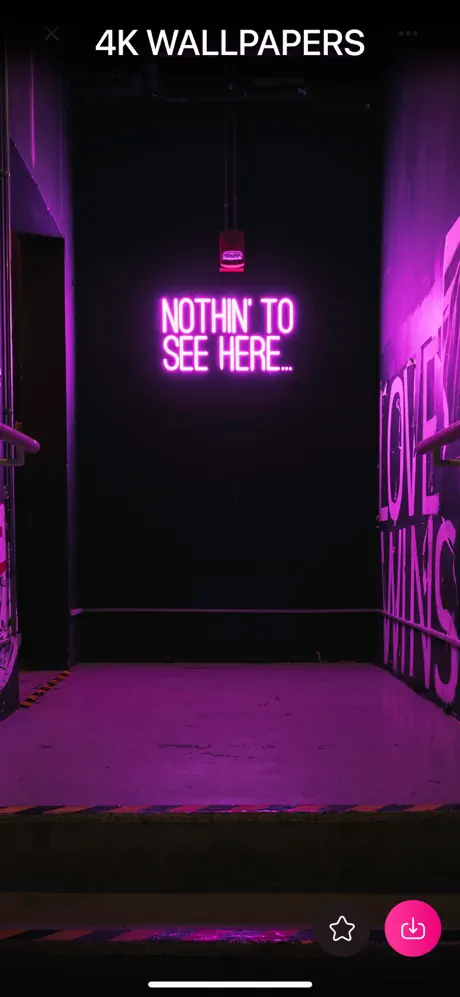
Vibe is the wallpaper pick in this week’s new arrivals. Browse its library when you want a different background for your iPhone. Before settling on one image, see how it sits behind the clock or your Home Screen icons. A picture can be appealing on its own and still make a busy screen harder to read.
The current catalog notes list Premium features unlocked in Vibe 2.0.9. Open the GET card to inspect the current Vibe IPA build.

How to install on iPhone
Sign in to BuildStore, link your iPhone and open the GET card for the app you want. Apple processing for a newly linked device can take up to three days. Once the device is ready, install from the catalog without a PC or a developer account of your own. BuildStore installation guide
If your next job is scanning and organizing a document, the previous digest covers Documents Plus and Scanner Air.